

Apple is famous for its “walled garden” approach. Unlike Android, which makes installing third-party apps relatively easy, iOS fights you every step of the way. However, for users in Malaysia and Southeast Asia, sticking strictly to the App Store isn’t always an option.
Many popular regional apps—especially high-performance gaming clients and trading platforms—are distributed via direct download links to bypass regional restrictions. But when you try to launch these apps, you are often hit with a scary-looking popup: “Untrusted Enterprise Developer.”
Don’t panic. Your phone isn’t broken. Here is how to fix it and why it happens.
Why Does This Error Happen?
Apple requires all apps to be digitally signed. Apps on the App Store are signed by Apple. Apps distributed outside the store (like corporate apps or regional gaming platforms) are signed by the developer using an Enterprise Certificate.
A prime example of this is the Mega888 iOS client. Because this app offers features and real-time connectivity that exceed standard App Store guidelines, it is distributed directly to users. When you install it, your iPhone recognizes the certificate but doesn’t “trust” it yet. You have to manually tell iOS that this is a safe app.
The Fix: Step-by-Step (iOS 17/18 Updated)
If you have just downloaded an app and can’t open it, follow these steps. Note: Apple renamed these settings in recent updates, so older guides might be wrong.
- Download and Install: First, ensure the installation is actually complete. You should see the app icon on your home screen, possibly greyed out or with a loading bar.
- Go to Settings: Open your iPhone Settings and tap on General.
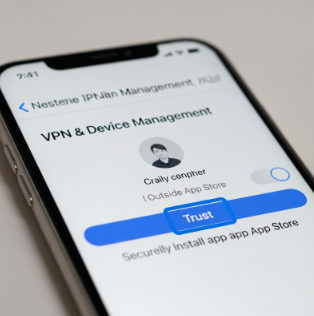
- Find Device Management: Scroll down. Depending on your iOS version, this will be labeled either “VPN & Device Management” or “Profiles & Device Management.”
- Locate the Certificate: Under the “Enterprise App” section, you will see a text string (often the name of a technology company). This is the digital signature for your app.
- Trust the Developer: Tap the name, then tap “Trust [Developer Name]”. A confirmation popup will appear; click Trust again.
Important Security Note
Once you hit “Trust,” the app will open immediately. However, this grants the app permission to run on your device.
Always ensure you downloaded the file from the official source. For popular apps like Mega888, there are many clone sites. Always verify you are getting the file from a verified hub (like Mega888ai) to ensure the Enterprise Certificate is valid and secure. If you download from a random forum, you risk installing a version with a revoked certificate, meaning the app will crash within days.
Conclusion
Sideloading on iOS requires a few extra taps, but it unlocks a world of content that Apple’s curation misses. Whether it’s for work or for accessing the best regional gaming servers, mastering the “Device Management” menu is an essential skill for any iPhone power user.
