The Tech FixrThe Tech Fixr
    What's Hot

    Magic Hour AI Image Editor: Tools, Features & What Actually Works

    March 18, 2026

    THE DIFFERENCE BETWEEN LODGE-BASED AND MOBILE CAMP SAFARIS IN TANZANIA

    February 25, 2026

    PS5 Storage Explained: Can You Play PS5 Games on External SSD?

    February 23, 2026
    Facebook X (Twitter) Instagram
    Facebook X (Twitter) Instagram
    The Tech FixrThe Tech Fixr
    Button
    • Home
    • Technology
    • Windows
      1. How To
      2. Problem Fix
      3. Reviews & Comparison
      4. View All

      Uncover the Benefits – How Free Nights Electricity Plans Can Work For You

      January 10, 2024

      How Often Does Nvidia Release New Cards? Insider Talks

      February 2, 2022

      Meshify C Fan Setup- Learn the Basic Guide

      February 1, 2022

      How to Install Windows 7 on DDR4 Motherboard?

      January 29, 2022

      How to Fit When CPU Cooler Won’t Fit Motherboard?

      March 27, 2022

      Why Is NVME Drive Not Showing up? [Possible Solutions]

      March 27, 2022

      Why White Light On Motherboard & What Are the Fixes?

      March 22, 2022

      Where to Plug Case Fans inside CPU? 3 Practical Places

      February 26, 2022

      Corsair QL Vs LL: Who Wins the Rivalry of System Cooling?

      March 22, 2022

      Micro ATX Vs Mid Tower: A Complete Guide On Differences & Similarities

      March 22, 2022

      Noctua Nf-F12 Vs Nf-A12 | What Is Your Suitable Cooler System?

      March 22, 2022

      3070 Vs 1080ti- Which One Should Be Your Ideal GPU?

      March 1, 2022

      How to Recover Deleted PDF Files in Windows

      September 17, 2024

      Are There Professional Services Available for Repairing Stuck Sash Windows?

      February 19, 2024

      Uncover the Benefits – How Free Nights Electricity Plans Can Work For You

      January 10, 2024

      How to Fit When CPU Cooler Won’t Fit Motherboard?

      March 27, 2022
    • Mobiles

      Why are Videos not Playing on My Samsung Phone?

      April 30, 2024

      What Sets Them Apart: A Deep Dive into the World of Trusted Mobile Games

      January 6, 2024
    • Android
      • How To
      • Problem Fix
      • Reviews & Comparison
    The Tech FixrThe Tech Fixr
    Home»Technology»Optimizing Performance: A Guide to Calibrating the Battery of Your MateBook D 14
    Technology

    Optimizing Performance: A Guide to Calibrating the Battery of Your MateBook D 14

    JakeBy JakeNovember 29, 2023No Comments4 Mins Read
    Facebook Twitter Pinterest Telegram LinkedIn Tumblr WhatsApp Email
    Screenshot 34
    Share
    Facebook Twitter LinkedIn Pinterest Telegram Email

    Maintaining optimal performance is crucial in the digital age, where our devices are integral to both work and leisure. The Huawei MateBook D 14, a reliable and efficient laptop, can benefit significantly from proper battery calibration. This guide explores the importance of battery calibration and provides a step-by-step approach to ensure your MateBook D 14 delivers peak performance when you need it most.

    Understanding Battery Calibration

    Battery calibration is recalibrating the software that monitors and displays your device’s battery life. Over time, the software may lose accuracy in estimating the remaining battery capacity, leading to incorrect readings and potentially impacting performance. Calibrating the battery helps the system regain an accurate understanding of the battery’s capacity, ensuring that the displayed battery percentage aligns with the actual charge.

    For laptop matebook d 14 users, understanding the nuances of battery calibration is the first step towards maintaining a reliable and consistent power supply. It not only ensures accurate battery readings but also contributes to prolonging the battery’s overall lifespan.

    When to Calibrate Your MateBook D 14 Battery

    Knowing when to calibrate your MateBook D 14’s battery is crucial for optimal performance. Aim to calibrate the battery every few months or after a significant system update. Additionally, suppose you notice unusual behaviour in your laptop’s battery life, such as sudden drops in percentage or rapid depletion. In that case, it’s a good indicator that it’s time to perform a calibration.

    Calibrating the battery is also advisable when you first purchase your MateBook D 14 or after a prolonged period of inactivity. This ensures that the battery management system is aligned with the battery’s physical state, providing accurate readings and promoting a healthier overall battery life.

    Step-by-Step Guide to Calibrating Your MateBook D 14 Battery

    Calibrating your MateBook D 14 battery involves a straightforward process that users can easily execute. Here’s a step-by-step guide:

    Charge to Full Capacity

    Start by plugging in your MateBook D 14 and allowing it to charge to its maximum capacity. Ensure the battery indicator shows 100% before proceeding to the next step.

    Reset Power Management

    Once fully charged, unplug your laptop and use it once fully charged until the power supply is gone. Let it run on battery power until it automatically shuts down due to low battery.

    Let It Rest

    After the laptop shuts down, leave it powered off for at least 2-3 hours. This allows the battery to cool down and settle.

    Charge Again

    Plug in your MateBook D 14 and charge it back to 100%. This completes the calibration process.

    Following these steps ensures that the battery management system of your MateBook D 14 is synchronized with the actual capacity of the battery, providing accurate readings and promoting long-term battery health.

    Benefits of Battery Calibration

    Calibrating the battery of your MateBook D 14 offers several benefits beyond just accurate battery readings. It can help prevent sudden shutdowns, enhance overall laptop performance, and increase the battery’s lifespan. Maintaining a consistent and precise battery calibration ensures that your MateBook D 14 is always ready to deliver optimal performance, whether working on important projects or enjoying multimedia content.
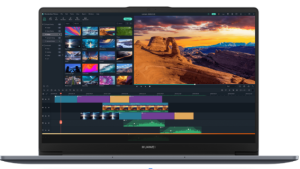
    Screenshot 35

    Conclusion

    In the pursuit of maximizing the potential of your MateBook D 14, battery calibration emerges as a crucial maintenance practice. Understanding the significance of calibration, knowing when to perform it, and following a simple step-by-step guide can contribute to a seamless and reliable user experience. By taking the time to calibrate your MateBook D 14’s battery, you not only optimize its performance but also contribute to the longevity of this powerful and versatile device. Make battery calibration a regular part of your laptop maintenance routine to ensure your MateBook D 14 remains reliable in digital endeavours.


    Share. Facebook Twitter Pinterest LinkedIn Tumblr Email
    Jake

    Related Posts

    Magic Hour AI Image Editor: Tools, Features & What Actually Works

    March 18, 2026

    PS5 Storage Explained: Can You Play PS5 Games on External SSD?

    February 23, 2026

    Erik Hosler Discusses the Future of Semiconductor Design Through Advanced Integration Technologies

    November 18, 2025

    Using Windows Emulators for Cross-Platform Development

    September 22, 2025

    Cypress vs Playwright: Which Testing Framework Wins?

    September 22, 2025

    Future of High-Speed Mobile Connectivity: 5G and Data Plans in 2025

    September 2, 2025

    Leave A Reply Cancel Reply

    You must be logged in to post a comment.

    Recent Posts
    • Magic Hour AI Image Editor: Tools, Features & What Actually Works March 18, 2026
    • THE DIFFERENCE BETWEEN LODGE-BASED AND MOBILE CAMP SAFARIS IN TANZANIA February 25, 2026
    • PS5 Storage Explained: Can You Play PS5 Games on External SSD? February 23, 2026
    • The Rise of Squad-Based Play in Modern Gun Games February 5, 2026
    • Diversifying the Semiconductor Ecosystem to Manage Global Production Volatility: Erik Hosler’s Perspective February 3, 2026
    Editors Picks

    Magic Hour AI Image Editor: Tools, Features & What Actually Works

    March 18, 2026

    THE DIFFERENCE BETWEEN LODGE-BASED AND MOBILE CAMP SAFARIS IN TANZANIA

    February 25, 2026

    PS5 Storage Explained: Can You Play PS5 Games on External SSD?

    February 23, 2026

    The Rise of Squad-Based Play in Modern Gun Games

    February 5, 2026
    Categories
    • Accessories & Others
    • All Others
    • Android
    • Business
    • How To
    • How To
    • How To
    • How To
    • IOS
    • Latest in Tech
    • Latest Posts
    • lifestyle
    • MAC
    • Marketing
    • Mobiles
    • News
    • Problem Fix
    • Problem Fix
    • Problem Fix
    • Problem Fix
    • Reviews & Comparison
    • Reviews & Comparison
    • Technology
    • Top Picks
    • Travel
    • Uncategorized
    • Windows
    Recent Posts
    • Magic Hour AI Image Editor: Tools, Features & What Actually Works March 18, 2026
    • THE DIFFERENCE BETWEEN LODGE-BASED AND MOBILE CAMP SAFARIS IN TANZANIA February 25, 2026
    • PS5 Storage Explained: Can You Play PS5 Games on External SSD? February 23, 2026
    • The Rise of Squad-Based Play in Modern Gun Games February 5, 2026
    • Diversifying the Semiconductor Ecosystem to Manage Global Production Volatility: Erik Hosler’s Perspective February 3, 2026
    About Us
    About Us

    The Tech Fixr is a collaboration of many talented geeks from the software industry who loves to explore various information of this huge part of technology. And to make sure each and every user, no matter if it’s android, windows, Mac, or IOS, can relate to a single place for getting constant feeding of informative contents as well as direct help in case of experiencing issues with using these.
    |
    Contact Email: [email protected]

    Latest Posts

    Magic Hour AI Image Editor: Tools, Features & What Actually Works

    March 18, 2026

    THE DIFFERENCE BETWEEN LODGE-BASED AND MOBILE CAMP SAFARIS IN TANZANIA

    February 25, 2026

    PS5 Storage Explained: Can You Play PS5 Games on External SSD?

    February 23, 2026
    © Copyright 2023, All Rights Reserved
    • Home
    • Privacy Policy
    • Contact Us

    Type above and press Enter to search. Press Esc to cancel.