

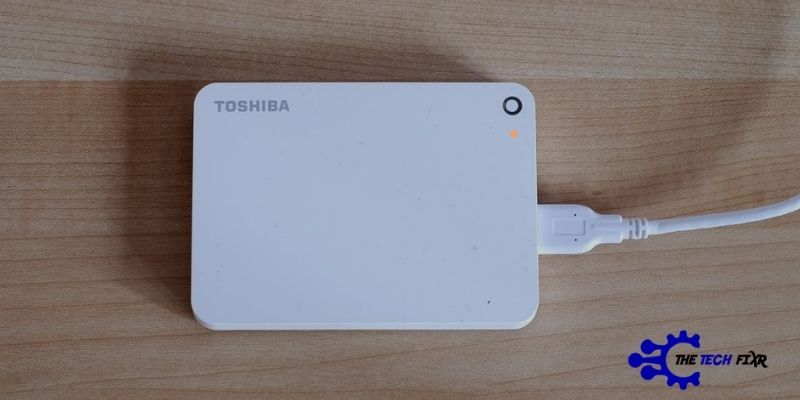
Why is your Toshiba external drive not working no light? Probably you’re using the outdated hard drive, or it is already dealing with partition issues!
To be frank, it’s impossible to break down every single issue in one article. Yes, because every hard drive situation is unique.
Nonetheless, we will try to explain some of the issues in this article. The fixes are easy to follow and very descriptive for a better understanding.
So, let’s move on!
Why Toshiba External Hard Drive Not Working No Light: Quick Chart
| Reasons | Solutions |
| Outdated Driver | Update the Driver |
| Partition problem | New Partition |
| Absent Drive Letter | Change The Drive Letter |
| Undetected Causes | Reboot The PC |
Here, we have listed out the 4 possible causes with easy, quick fixes for you:
Outdated Driver
You see, drivers are essential for the hardware components of the pc to integrate and work. That’s why an up-to-date driver is a must.
People have seen drastic system shutdown or slow down just because of an outdated or broken driver. Plus, having trouble with external hard drives, speakers, or headphones working is a very common phenomenon in this case.
So, if you are facing issues like hard drive does not work, we blame the incompatibility between the current driver version and the device.
How to Fix It: Updating the Old Driver
- Go to your computer’s search bar. Write “device manager” there.
- Or what you can do instead is right-click on your windows icon and choose “device manager” from the list.
- It’s going to open an interface.
- There’s a whole list of device drivers that you can select from. Look for the driver that needs an upgrade.
- Right-click on that option and check on the “update”.
You can also wish to update all outdated drivers at once automatically.
Corruption In Files
Files corruption simply refers to a situation where a segment of the file is hard to access for the drive. What happens when the system doesn’t get to finish writing the data of that file?
Well, this problem prevents the driver from working or showing up on the pc.
How to Fix It: Creating a New Hard Drive Partition
- Let’s go to the windows menu and find the file explorer. Once you are inside right-click on “this pc”.
- Now, check on the “manage”, and it will open a computer management window.
- Look for the storage option and then “disk management”.
- After you have clicked on disk management, you will see “disk 0” with “system reserved” and C drive. It can be another name if you renamed your local disk/C before.
- Now if you want to partition this drive, right-click on that. Scroll down the list and click on the “shrink volume”.
- And now you wait. There will be a message on the screen saying,” querying volume for shrink space.”
- Then you notice a window stating how much volume you can shrink. Remember, the amount is in megabytes. So if you want to unallocated 5 GB, just type 5000 in the section “enter the amount of space you want to shrink”.
- With that, you see a third partition with 5 GB of space beside your C drive. Now right-click on that partition and select “new volume”.
There you get to make changes for that new partition. Click on the wizard and choose any format you want, rename it, etc.
Absent Drive Letter
Each storage device comes with a specific letter from A-Z. These letters mean a unique path. An absent drive letter in your computer can be a reason why your hard disk is unable to access that file.
How to Fix It: Changing the Drive Letter
- Open the disk management window.
- You will find your whole set of disks here. But do not touch your C drive. It might break the paths for programs on your computer. Keep that in mind.
- Right-click on the drive. See the “change the drive letter path” section? Select it.
- Now scroll through the list of letters and choose the one you want. Press “ok”.
Now go back to “this pc”, and see if it’s there.
Undetected Causes
Apart from these three, there are numerous reasons why your Toshiba hard drive not showing up in Disk Management. It can be due to a recent virus attack or some dangerous files inside that hard disk, or unsafe power ejection.
But as soon as you detect the issue, you must take a step to find a remedy. Otherwise, the whole security system can crash and expose you to the dangers of hacking or damaging pc.
We have two fixing methods for you in such cases where the reason is unclear. One is: using a different USB port or trying on a different PC. Another one is rebooting the system altogether.
How to Fix It
Let us show you 2 effective methods in terms of fixing issues with undetected causes.
- Trying Another USB Port
If the hard drive doesn’t show up, try a different port. For example, if you were using a 3.00 port at first, now plug it inside a 2.00 USB port. If the problem is only with a specific port, this technique will be enough to save you out of it.
Sometimes, due to dust or other small particles, the disk gets hot pretty easily. Overheating is the main culprit to blame in this scenario.
- Rebooting the PC
Our last fix for the Toshiba hard drive not working mac will be a fresh reboot of your pc.
And here’s how you do it.
- First, go to the bottom corner of your home screen and ask for “recover options”
- Now all the recovery options from your windows settings will appear in front of you.
- Navigate to find the “reset this pc” button and start the procedure.
- After that, you will receive two options stating: keep your files and remove all your files.
- If you choose the second one, you will get a clean and fresh pc. But if you want to keep some files and guard them with a backup choose the first one.
And that’s how the reboot is complete!
How to Fix An Unresponsive External Hard Drive Toshiba?
Follow the steps below to fix an unresponsive external hard drive.
- First off, clean up the USB port to remove any kind of dust. You might not believe but dust is the main culprit why your disks get hot quickly and doesn’t work efficiently.
- Once it is dust-free, go to the disk management and locate all the hard drives there.
- Now click “delete” and “ok”.
- In the next step, remove the hard disk and restart your pc.
- It will ask you to include a hard disk now. Attach it again.
How Do I Fix My Drive Not Detected Toshiba
If your pc is not detecting the external hard drive, follow the above procedure. It should work for you as well. But if that doesn’t work. Here’s a guide for you too.
- First, run an anti-virus program on your pc. If the reason is a virus attack, you can detect it. Remember to use a good anti-virus scan for this operation.
- Now, if that doesn’t do the work, update the drivers. Go to disk management and find the current drivers. Now update them all automatically.
Fix Toshiba Drive Not Working on Xbox!
Toshiba portable HDD is directed towards multiple devices, and this remedy is not only limited to Windows PCs.
So, this solution will surely pay off to resolve the Toshiba drive not working on Xbox One or Toshiba hard drive not working mac or any similar impediments.
Despite this, the LED may flicker for a Mac computer, but you can not access the device data. To tackle this we need a different approach. Therefore, to show portable HDD among storage, do the tasks maintaining the order:
- On the onset, Select Finder Menu
- Then opt for preferences.
- Next, pick General from the bar options
- Finally, put a checkmark on the External Drives tick-box.
Now you can access HDD from storage. Bravo!
Notes:
However, if your Toshiba hard drive is still not working, no light, make sure to connect it to another system. And if you find the same issue, the drive can be dead. And you have no other ways to call for some professional or replace the drive.
Frequently Asked Questions (FAQs)
Why External Hard Drive Light Not Showing Up?
When the computer doesn’t detect the connection, you can’t see the light. Examine the fans to see if they are working or not. If you find them off, it might be because of an issue with the power supply.
How Do I Reset My Toshiba HDD?
Locate the settings and click on Update and security. You will find the reset option here. Make sure you check on the “keep the old files”. Otherwise, you lose previous data on the drive.
Why Did My External Drive Suddenly Stop Working?
There are tons of reasons for that issue. The most common ones are virus attacks, missing drive letters, physical damage to the disk, unclean or dusty disk, old and obsolete driver, files corruption, etc.
Wrapping Up!
Hands down, Toshiba is the most renowned name in the hard drive industry. And we don’t have to prove that to you if you have done some research while buying your drives!
But that doesn’t mean it never malfunctions. We must always be careful even with the best quality drives. Hope you got the answer for drive not working no light. Drives back up our most important files, and we don’t want to make any mistake that can erase them or damage them forever.
You Can Also Read:
