The Tech FixrThe Tech Fixr
    What's Hot

    THE DIFFERENCE BETWEEN LODGE-BASED AND MOBILE CAMP SAFARIS IN TANZANIA

    February 25, 2026

    PS5 Storage Explained: Can You Play PS5 Games on External SSD?

    February 23, 2026

    The Rise of Squad-Based Play in Modern Gun Games

    February 5, 2026
    Facebook X (Twitter) Instagram
    Facebook X (Twitter) Instagram
    The Tech FixrThe Tech Fixr
    Button
    • Home
    • Technology
    • Windows
      1. How To
      2. Problem Fix
      3. Reviews & Comparison
      4. View All

      Uncover the Benefits – How Free Nights Electricity Plans Can Work For You

      January 10, 2024

      How Often Does Nvidia Release New Cards? Insider Talks

      February 2, 2022

      Meshify C Fan Setup- Learn the Basic Guide

      February 1, 2022

      How to Install Windows 7 on DDR4 Motherboard?

      January 29, 2022

      How to Fit When CPU Cooler Won’t Fit Motherboard?

      March 27, 2022

      Why Is NVME Drive Not Showing up? [Possible Solutions]

      March 27, 2022

      Why White Light On Motherboard & What Are the Fixes?

      March 22, 2022

      Where to Plug Case Fans inside CPU? 3 Practical Places

      February 26, 2022

      Corsair QL Vs LL: Who Wins the Rivalry of System Cooling?

      March 22, 2022

      Micro ATX Vs Mid Tower: A Complete Guide On Differences & Similarities

      March 22, 2022

      Noctua Nf-F12 Vs Nf-A12 | What Is Your Suitable Cooler System?

      March 22, 2022

      3070 Vs 1080ti- Which One Should Be Your Ideal GPU?

      March 1, 2022

      How to Recover Deleted PDF Files in Windows

      September 17, 2024

      Are There Professional Services Available for Repairing Stuck Sash Windows?

      February 19, 2024

      Uncover the Benefits – How Free Nights Electricity Plans Can Work For You

      January 10, 2024

      How to Fit When CPU Cooler Won’t Fit Motherboard?

      March 27, 2022
    • Mobiles

      Why are Videos not Playing on My Samsung Phone?

      April 30, 2024

      What Sets Them Apart: A Deep Dive into the World of Trusted Mobile Games

      January 6, 2024
    • Android
      • How To
      • Problem Fix
      • Reviews & Comparison
    The Tech FixrThe Tech Fixr
    Home»Windows»How to Move a Window to Another Monitor on Windows & Mac PC
    Windows

    How to Move a Window to Another Monitor on Windows & Mac PC

    WashimBy WashimJanuary 11, 2022Updated:January 21, 2022No Comments5 Mins Read
    Facebook Twitter Pinterest Telegram LinkedIn Tumblr WhatsApp Email
    How to Move a Window to Another Monitor
    Share
    Facebook Twitter LinkedIn Pinterest Telegram Email

    Working with multiple monitors can take you on a fast track for productive work management. But the question is how to move a window to another monitor? It’s effortless with the Windows project option, and you can do it either by tapping some keys on the keyboard or clicking on the mouse.

    Are you a programmer or a system analyst who needs to keep an eye on multiple screens at the same? Then, this ride is going to meet one of your crucial needs now.

    Here we will discuss how to move window to another screen for Windows and Mac PC. Let’s begin!

    Table Of Contents show
    1 How to Move a Window to Another Monitor
    1.1 How to Move a Window to Another Monitor Windows
    1.1.1 Method-1: Move Windows to Another Monitor with Keyboard
    1.1.2 Notes:
    1.1.3 Method-2: Move Windows to Another Monitor Using Mouse
    1.2 How to Move a Window to Another Monitor Mac
    1.3 This May Help You Too!
    2 Frequently Asked Questions (FAQs)
    2.1 Can’t drag Windows to second monitor Windows 10?
    2.2 How do I navigate between two monitors?
    3 Summing Up

    How to Move a Window to Another Monitor

    Now, if you are a Windows user or Mac, we have the solution for both. So, stay tuned till the end to gather the ideas with shortcuts, as well.

    How to Move a Window to Another Monitor Windows

    Basically, there are 2 methods to move window to other monitor windows 10. One is the keyboard shortcut method, and another is the same age-old method with clicking mouse.

    You might not find the project option for the Windows 7, Xp, or older versions like you get on Windows 10. But we also have a solution: use a third-party software called Display Fusion. Using this, you can enjoy the window moving or expanding features as you can do on Windows 10 or later versions.

    Oh! Wait a minute. Before you proceed with moving the window, enable the project option from your system.

    To enable this-

    • Press Windows key + P from the keyboard,

    Or,

    • Click on the notification panel from the corner right side of the windows screen and click on expand for all notifications. From there, select ‘project’.
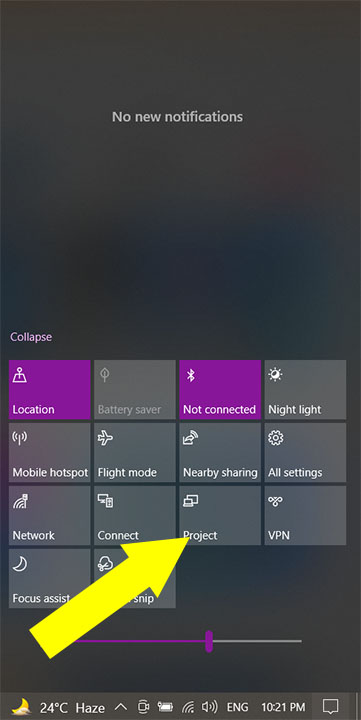
    project
    • Now, you will see a few options like PC screen only, duplicate, extend, etc. Select ‘Extend’.
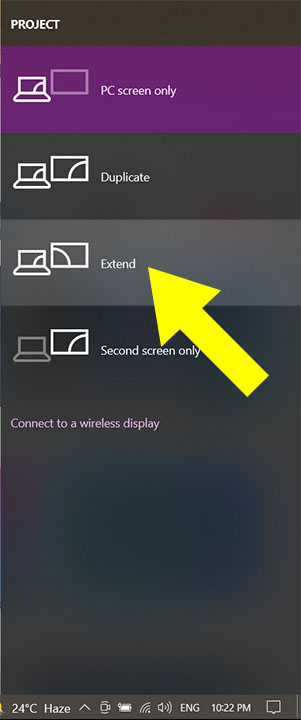
    project selection

    Method-1: Move Windows to Another Monitor with Keyboard

    Let’s start with the easy method for moving the window that most want- the keyboard shortcut keys.

    To move a window with the keyboard, press

    Windows key + Shift + Arrow key (Left/Right arrow key)

    keyboard shortcuts to move window to another monitor

    Depending on the monitor location, you can either press the left or right arrow key.

    For example, if your other monitor is on the right side of your current monitor, press Windows key + Shift + right arrows key,

    And if your other monitor is on the left side, and you want to keep the window on that side, press the Windows key + Shift + left Arrow key.

    Notes:

    • Before using this option, make sure the other monitor is connected
    • This method works for dual or more than 2 monitors. And when you reach the limit, the last moved window will be back to the first one.

    Method-2: Move Windows to Another Monitor Using Mouse

    Now, move on to another method: the drag and drop method. Yes, for folks who don’t like to span their fingers in pressing multiple keys, the drag and drop method is for them.

    Here, you need to do nothing critical. Just click on the window you want to move and drag the window to the edge of the screen towards your other monitor.

    So, if you were lingering with how to drag screen to second monitor, now you know, right? Enjoy your work with multiple displays.

    How to Move a Window to Another Monitor Mac

    So, you’re struggling with your Mac and need to move the window to another monitor? Well, the best suitable option is to use the Spectacle app to move the window to another monitor on Mac.

    After you download and install the app, open it, and using the shortcut keys, you can easily play the Window snap.

    According to the Spectacle shortcuts,

    To move a window to the available previous display, press ⌃ + ⌥ + ⌘ + ←

    And to move a window to the monitor next to the current one, press⌃+⌥+⌘ + →

    However, another app recommended by some users is the Rectangle. As you can see, the Spectacle is no longer under any active maintenance support but yet works fine.

    This May Help You Too!

    Frequently Asked Questions (FAQs)

    Can’t drag Windows to second monitor Windows 10?

    The common problem that most face. First, make sure the taskbar is not locked. To ensure this, right-click on the taskbar and uncheck the option of lock taskbar. After that, double-clicking on the window title bar sometimes works when you find it unable to drag. Again, rearranging the display settings also set things working fine again.

    How do I navigate between two monitors?

    To navigate between two monitors, use the CTRL and Windows key of the left panel of the keyboard layout. It means CTRL + Windows + Arrow keys (left/right) to switch between the monitors.

    Summing Up

    Whether it’s your Mac or the Windows PC, if you know how to move a window to another monitor, your work level gets the rapid wheel to run.

    Sometimes, users get glitched with the navigation or dragging option, but we hope you can sort them out after reading this complete guide.

    Read Also:

    • The Sandisk Cruzer Dial Won’t Open: Why & How To Fix It
    • Is 4ms Response Time Good For Gaming Monitors?
    • Is XFX A Good Gpu Brand? If Yes Know Why And How
    • [Fixed] Why is My Graphics Card Not Performing- A Proper Guide!
    Share. Facebook Twitter Pinterest LinkedIn Tumblr Email
    Washim

    Related Posts

    How to Recover Deleted PDF Files in Windows

    September 17, 2024

    Are There Professional Services Available for Repairing Stuck Sash Windows?

    February 19, 2024

    Uncover the Benefits – How Free Nights Electricity Plans Can Work For You

    January 10, 2024

    How to Fit When CPU Cooler Won’t Fit Motherboard?

    March 27, 2022

    Why Is NVME Drive Not Showing up? [Possible Solutions]

    March 27, 2022

    Corsair QL Vs LL: Who Wins the Rivalry of System Cooling?

    March 22, 2022

    Leave A Reply Cancel Reply

    You must be logged in to post a comment.

    Recent Posts
    • THE DIFFERENCE BETWEEN LODGE-BASED AND MOBILE CAMP SAFARIS IN TANZANIA February 25, 2026
    • PS5 Storage Explained: Can You Play PS5 Games on External SSD? February 23, 2026
    • The Rise of Squad-Based Play in Modern Gun Games February 5, 2026
    • Diversifying the Semiconductor Ecosystem to Manage Global Production Volatility: Erik Hosler’s Perspective February 3, 2026
    • Top Laptops To Gift This Year: From Students to Streamers January 23, 2026
    Editors Picks

    THE DIFFERENCE BETWEEN LODGE-BASED AND MOBILE CAMP SAFARIS IN TANZANIA

    February 25, 2026

    PS5 Storage Explained: Can You Play PS5 Games on External SSD?

    February 23, 2026

    The Rise of Squad-Based Play in Modern Gun Games

    February 5, 2026

    Diversifying the Semiconductor Ecosystem to Manage Global Production Volatility: Erik Hosler’s Perspective

    February 3, 2026
    Categories
    • Accessories & Others
    • All Others
    • Android
    • Business
    • How To
    • How To
    • How To
    • How To
    • IOS
    • Latest in Tech
    • Latest Posts
    • lifestyle
    • MAC
    • Marketing
    • Mobiles
    • News
    • Problem Fix
    • Problem Fix
    • Problem Fix
    • Problem Fix
    • Reviews & Comparison
    • Reviews & Comparison
    • Technology
    • Top Picks
    • Travel
    • Uncategorized
    • Windows
    Recent Posts
    • THE DIFFERENCE BETWEEN LODGE-BASED AND MOBILE CAMP SAFARIS IN TANZANIA February 25, 2026
    • PS5 Storage Explained: Can You Play PS5 Games on External SSD? February 23, 2026
    • The Rise of Squad-Based Play in Modern Gun Games February 5, 2026
    • Diversifying the Semiconductor Ecosystem to Manage Global Production Volatility: Erik Hosler’s Perspective February 3, 2026
    • Top Laptops To Gift This Year: From Students to Streamers January 23, 2026
    About Us
    About Us

    The Tech Fixr is a collaboration of many talented geeks from the software industry who loves to explore various information of this huge part of technology. And to make sure each and every user, no matter if it’s android, windows, Mac, or IOS, can relate to a single place for getting constant feeding of informative contents as well as direct help in case of experiencing issues with using these.
    |
    Contact Email: [email protected]

    Latest Posts

    THE DIFFERENCE BETWEEN LODGE-BASED AND MOBILE CAMP SAFARIS IN TANZANIA

    February 25, 2026

    PS5 Storage Explained: Can You Play PS5 Games on External SSD?

    February 23, 2026

    The Rise of Squad-Based Play in Modern Gun Games

    February 5, 2026
    © Copyright 2023, All Rights Reserved
    • Home
    • Privacy Policy
    • Contact Us

    Type above and press Enter to search. Press Esc to cancel.