

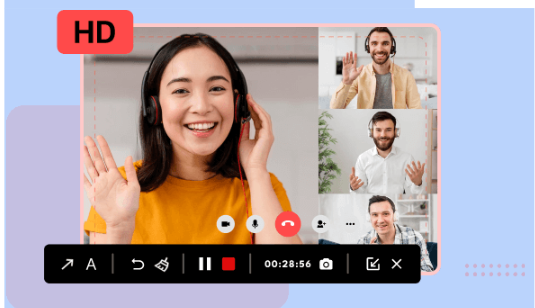
Embarking on the journey of screen recording can be both exciting and daunting, especially for beginners seeking a user-friendly yet powerful solution. In the realm of screen recording, iTop Screen Recorder stands out as a versatile and intuitive tool that caters to users of all levels. Whether you’re a novice looking to capture your computer screen for the first time or an aspiring pro aiming to enhance your recording skills, this article, titled “From Novice to Pro: A Beginner’s Guide to Screen Recording with iTop Screen Recorder,” serves as your comprehensive guide. We’ll navigate through the features, functionalities, and step-by-step instructions to empower you on your screen recording odyssey, ensuring that you can harness the full potential of iTop Screen Recorder with ease and confidence.
Mastering Advanced Features: Unlocking the Full Potential of iTop Screen Recorder
Welcome to the next level of screen recording mastery with iTop Screen Recorder! As you’ve become acquainted with the basics, it’s time to delve into the advanced features that set this free screen recorder apart. In this guide, we will explore key functionalities that will elevate your recording experience and enable you to unleash the full potential of this powerful tool.
- High-Quality Video Customization
Discover how to optimize your recordings by mastering advanced settings such as frame rate, resolution, and codec options. Tailor your videos to meet professional standards, whether you’re creating tutorials, gameplay recordings, or presentations.
- Audio Enhancement Techniques
Learn how to capture crystal-clear audio with iTop Screen Recorder’s advanced audio settings. Uncover the secrets of noise reduction, audio source selection, and synchronization, ensuring that your recordings are not just visually impressive but also sonically impeccable.
- Efficient Editing with iTop Editor
Dive into the integrated iTop Editor to seamlessly edit and enhance your recordings. Unearth advanced editing techniques, including adding annotations, merging clips, and incorporating overlays, giving your content a polished and professional touch.
- Scheduled Recordings and Automation
Unlock the power of scheduled recordings to streamline your workflow. Explore how to set up automated recording sessions, allowing you to capture specific events, webinars, or meetings without manual intervention.
- Exporting and Sharing Options
Navigate through the various export formats and settings available in iTop Screen Recorder. Learn how to optimize your videos for different platforms and share your creations effortlessly, whether on social media, video-sharing platforms, or within professional networks.
- Advanced Tips and Tricks
Uncover expert tips and tricks that will take your iTop Screen Recorder proficiency to new heights. From keyboard shortcuts to hidden features, this section will equip you with the knowledge to become a true iTop Screen Recorder maestro.
By the end of this guide, you’ll have mastered the advanced features of iTop Screen Recorder, ensuring that you can create professional-quality recordings tailored to your specific needs. Let’s embark on this journey of advanced screen recording together!
iTop Screen Recorder Tips and Tricks: Elevate Your Recording Skills Beyond the Basics
Welcome to the realm of advanced recording techniques with iTop Screen Recorder! In this step-by-step guide, we’ll explore a variety of tips and tricks that will take your screen recording skills to the next level. Whether you’re a content creator, educator, or professional, these insights will empower you to make the most of the features of this screen recorder Windows 10 and enhance the quality of your recordings.
Step 1: Optimizing Recording Settings
Begin by customizing the iTop Screen Recorder’s settings to suit your specific recording needs. Adjust the frame rate, resolution, and bitrate for optimal video quality. Explore the advanced settings to strike the perfect balance between file size and video clarity.
Step 2: Mastering Audio Capture
Enhance your recordings by mastering iTop Screen Recorder’s audio settings. Learn how to select the ideal audio source, minimize background noise, and ensure synchronized audio and video playback. Achieving high-quality audio is crucial for professional-grade content.
Step 3: Efficient Use of Hotkeys
Discover the power of keyboard shortcuts to streamline your recording process. From starting and stopping recordings to capturing specific regions of your screen, becoming familiar with iTop Screen Recorder’s hotkeys will significantly boost your efficiency.
Step 4: Editing Like a Pro with iTop Editor
Take advantage of iTop Editor’s advanced features to refine your recordings. Explore how to add annotations, overlay images, cut and merge clips, and apply transitions. Mastering these editing techniques will give your videos a polished and professional look.
Step 5: Scheduled Recordings for Convenience
Explore the convenience of scheduled recordings with iTop Screen Recorder. Learn how to set up automated recording sessions for webinars, meetings, or any time-sensitive content, allowing you to focus on your tasks while iTop takes care of the recording.
Step 6: Optimizing Export Settings
Understand the various export options and settings available in iTop Screen Recorder. Ensure your videos are optimized for different platforms by choosing the right format, resolution, and quality. This step is crucial for seamless sharing and uploading.
Step 7: Advanced Tips for Efficiency
Delve into advanced tips and tricks to further optimize your workflow. From utilizing multi-monitor support to exploring lesser-known features, these insights will make you a proficient iTop Screen Recorder user.
By following these steps and incorporating these tips and tricks into your recording routine, you’ll elevate your skills with iTop Screen Recorder and create captivating, professional-grade content. Let’s dive in and unlock the full potential of your screen recording endeavors!
Conclusion
In conclusion, armed with the insights gained from this comprehensive guide, you are now equipped to elevate your screen recording endeavors to new heights using iTop Screen Recorder. From mastering advanced settings and efficient editing techniques to harnessing the convenience of scheduled recordings, you have delved into the intricacies of this powerful tool. By optimizing your recording workflow and incorporating expert tips and tricks, you can create polished, professional content tailored to your specific needs. Whether you are a content creator, educator, or professional seeking to enhance your visual communication, iTop Screen Recorder offers a versatile platform to bring your ideas to life. Embrace these tips and tricks, experiment with the features, and let iTop Screen Recorder be the key to unlocking your full creative potential in the realm of screen recording. Happy recording!
